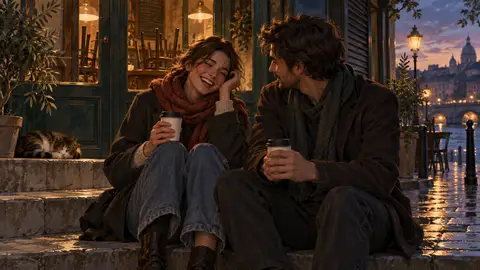

Imagine a conversation that ends outside a closed café. You and the character have spent the evening arguing. Now you're sitting on the steps, drinking terrible coffee, and they've finally started laughing.
You can picture it: the shutters behind them, the paper cup, the expression you haven't seen all evening. You'd like a picture of that.
Scene snapshots let you generate an image from a character's reply, right inside the chat. The picture stays with the message and is saved to your private gallery. From there, you can keep it for yourself, adjust it, or share the moment.
The scene is already in the conversation
Find the reply you want to capture and choose Snapshot from its message toolbar. On desktop, hover over the message to reveal the controls; on a phone, tap it. The first time, you'll be asked to confirm the credit cost.
Reverie uses that reply and the nearby conversation to build the image. You can stay with the story while it generates, without writing a separate image prompt. When a character's avatar is available as a reference, it helps the image keep their appearance familiar.
The result is an AI-generated interpretation of the scene. A detail may land differently from how you imagined it. If you have a particular shot in mind, Custom snapshot in the message's More menu gives you controls for framing, mood, and interaction. You might bring the camera closer to a face, choose a point-of-view shot, or ask for a gentler expression.
Snapshots use credits, and the interface shows the estimated cost before generation. Failed generations aren't charged; a successfully generated image still costs credits even if you decide to try again.
You choose how much to share
Every snapshot starts private. It's saved under My snapshots in the character's gallery, where you can return to it later.
If you'd like to send it to a friend, you can export a scene card with the picture and any text you choose to add. A snapshot you haven't published stays private on Reverie when you export it. In that case, the card's link and QR code point to the character's page, so the person receiving it can meet the character too. For a published snapshot, they open the scene's public page instead.
To give the scene its own public page, choose Publish scene & text. You can add a title and a short excerpt, write something new, or leave the text blank. A line from the conversation is included only when you choose to add it. The rest of your chat stays private.
You can withdraw publication later. That takes down the public snapshot page while keeping the image in your gallery.
A character through other people's eyes
On characters with Community snapshots enabled, published scenes also appear together on the character's page. It's a place to see where other players' conversations have taken them.
Someone else might meet that same character at a formal dinner, get lost with them on a mountain trail, or spend an uneventful afternoon in their kitchen. A collection of scenes can suggest possibilities you wouldn't get from a character description alone. For creators, it's also a chance to see how people have imagined the characters they made.
When a shared scene makes you curious, Start your story opens a new conversation with that character. You get to find out where your own version goes.
The next time a reply leaves you with a picture in your head, look for the camera in the message toolbar. You can save the scene and carry on from there.